Inviting members and working with an agency
For who can invite whom and what each role can do, see Members and permissions.
Inviting someone into the workspace
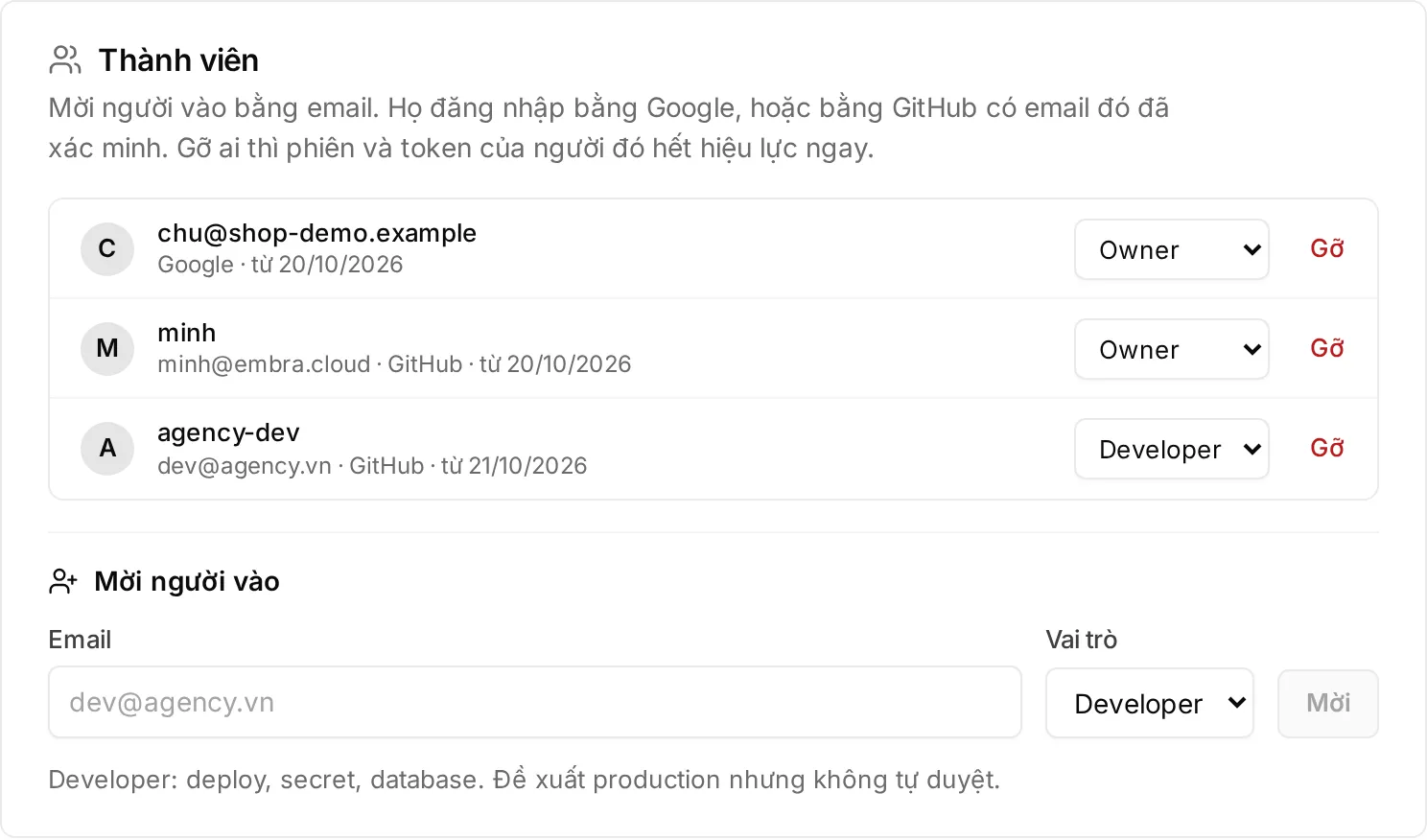
Section titled “Inviting someone into the workspace”An Owner or Admin does this in the browser. The CLI can only list members (embra members list).
- Open Cài đặt (Settings) → “Thành viên” (Members).
- In “Mời người vào” (Invite someone), enter the Email.
- Choose a Vai trò (Role): Admin, Developer or Chỉ xem (Viewer). An Admin can only invite Developer and Viewer.
- Click “Mời” (Invite). The console says “Đã gửi lời mời. Lời mời còn hạn 14 ngày.” (Invite sent. It is valid for 14 days.)
The invite shows in the list as “Chờ đăng nhập · hết hạn …” (Waiting to sign in · expires …). To cancel it, click “Thu hồi” (Revoke) on that row.
What the invited person does
Section titled “What the invited person does”| Case | What to do |
|---|---|
| No Embra account yet | Click “Đăng nhập bằng Google” (Sign in with Google) with the invited email, or “Đăng nhập bằng GitHub” (Sign in with GitHub) if the GitHub primary email matches the invited email. After signing in they land in the workspace |
| Already has an Embra account (for example a trial workspace) | The invite is accepted at the next sign-in. Until then the account menu shows “Lời mời vào …: đăng xuất rồi đăng nhập lại để nhận” (Invited to …: sign out and sign in again to join). Sign out, then sign in again with the invited email |
| Not signed in within 14 days | The invite expires. An Owner or Admin invites the same email again to renew it |
GitHub and Google email rules: Inviting members.
Switching between workspaces
Section titled “Switching between workspaces”One person can belong to several workspaces, for example an agency developer working for several clients.
- Click your avatar to open the account menu.
- Under Workspace, click the workspace you want.
- The console reloads on that workspace. The account menu button shows the open workspace’s name and your role there.
- On your next sign-in, Embra opens the workspace you used most recently.
- Workspaces whose trial expired or that are being deleted are greyed out and can’t be opened. A suspended workspace still opens, read-only.
Removing a member
Section titled “Removing a member”- Open Cài đặt (Settings) → “Thành viên” (Members).
- Click “Gỡ” (Remove) on the person’s row.
- Click “Gỡ khỏi workspace” (Remove from workspace) to confirm, or “Giữ lại” (Keep) to cancel.
- Every session and token that person created is revoked at once, including CI tokens running in a pipeline. If a pipeline must keep running, someone who stays creates a new token before the removal.
- The workspace must keep at least one Owner.
What an agency account is
Section titled “What an agency account is”An agency account is a partner’s billing account that pays for several workspaces (one per client or project).
- Embra opens agency accounts for partners. For the partner programme terms, email hello@embra.cloud.
- Each client workspace keeps its own plan (Start, Build or Grow) and its own limits.
- The agency account gets one consolidated invoice for all its workspaces, with the discount on list prices agreed in the partner terms.
- Once you belong to an agency account, the account menu shows “Tài khoản agency” (Agency account).
People in the agency account
Section titled “People in the agency account”An agency account has two roles, separate from the roles inside each workspace:
| Role | Can |
|---|---|
| Owner | Create client workspaces, prepay, invite and remove people of the account |
| Billing | View invoices only |
To invite someone: open “Tài khoản agency” (Agency account) → “Người của tài khoản” (People in this account) → enter the email, pick the role, click “Mời” (Invite). The invited person joins at their next sign-in, with the exact email that was invited. The invite expires after 14 days.
Creating a client workspace
Section titled “Creating a client workspace”Only an Owner of the agency account, in the browser.
- Open the account menu → “Tài khoản agency” (Agency account).
- Click “Tạo workspace cho khách” (Create a client workspace).
- Enter “Tên workspace (tên khách hoặc dự án)” (Workspace name, client or project).
- Choose a Gói (Plan): Start, Build or Grow.
- Click “Tạo và mở workspace” (Create and open workspace).
- The workspace is on a paid plan at once, with no trial. You are its Owner.
- It is billed by the day from today on the agency account’s invoice.
- The line under the account name shows how many workspaces you have out of the maximum. At the maximum the create button is disabled; email hello@embra.cloud for more.
- While an invoice is overdue, you can’t create new workspaces.
Managing client workspaces
Section titled “Managing client workspaces”“Workspace của khách” (Client workspaces) lists every workspace of the account with its plan and monthly price.
- Click “Mở” (Open) to switch to it.
- “Bạn chưa là thành viên” (You are not a member): you have no role in that workspace, so you can’t open it. The workspace Owner invites you like any other member.
- To invite the client’s people, follow Inviting someone into the workspace. Recommended role split: Agencies working for a business.
People in a client workspace do not see amounts. Their “Thanh toán” (Billing) page says “… thanh toán cho bạn” (… pays for you), meaning the agency account pays.
Paying the consolidated invoice
Section titled “Paying the consolidated invoice”“Hoá đơn gộp” (Consolidated invoices) lists each period with its amount and status: “Đã thanh toán” (Paid), “Hạn …” (Due …) or “Đang đối soát” (Reconciling).
When an invoice is unpaid, the top of the page shows the VietQR code, the amount and the transfer note. Scan it with your banking app as for a normal workspace. See Choosing a plan and paying.
Prepaying 3, 6 or 12 months for a client
Section titled “Prepaying 3, 6 or 12 months for a client”An Owner of the agency account can prepay each client workspace.
- Under “Workspace của khách” (Client workspaces), click “Trả trước” (Prepay) on the workspace’s row.
- Choose a term. Each option shows “… tháng · giảm thêm …%” (… months · …% extra off), the monthly price and the total.
- Click “Tạo mã thanh toán” (Get payment code).
- Scan the VietQR code shown at the top of the page.
- The “extra off” applies to the agency account’s already discounted monthly price; the dialog shows the monthly price and the total.
- The prepaid term starts after the running period and takes effect only once Embra receives the full amount. The workspace row then shows “Trả trước tới …” (Prepaid until …).
- The “Trả trước” button only shows when: the workspace has had its first invoice, is not already in a prepaid term, has no prepayment waiting for payment, and the account has no overdue invoice.
- Changed your mind before transferring: click “Huỷ đơn trả trước” (Cancel prepayment).
Refunds on a prepaid term follow the Terms, section 4 (Vietnamese).
Handing a workspace over to the client
Section titled “Handing a workspace over to the client”The console has no handover button yet. To change who pays for a workspace (for example an agency handing it to the client), email hello@embra.cloud; the Embra team does it by hand. During a prepaid term, the paid term goes with the workspace.
To change the workspace Owner, follow Agencies working for a business.