Move an existing app to Embra
Order: adapt the app → deploy the schema → import the data → point the domain. When you’re done, the app runs on Embra with its own Postgres holding your existing data, and your domain points to Embra.
Check what needs to change
Section titled “Check what needs to change”| Item | Why | How |
|---|---|---|
| Port and address | If the app listens only on 127.0.0.1, Embra cannot reach it |
Listen on 0.0.0.0 on the port in PORT (3000 by default). Prepare your app |
| Health check | A new release only gets traffic after 3 GET requests in a row return 2xx |
Set [deploy] health_path to a path that returns 2xx, not a redirect. Health check |
| Writing files | The filesystem is read-only; only /tmp is writable and it is lost on restart |
Store user uploads in an S3 bucket. File storage |
| Database schema | The app’s database user cannot change the schema | Put the schema in migrations/NNNN_ten.sql and drop the migrate command at startup. Database and migrations |
| Extensions, functions, triggers, views | Migrations containing these are refused | An app that depends on them cannot move as it is yet |
| Env vars | The app reads each secret from an env var of the same name | Paste your .env file into Secrets (see below). Secrets |
| Start command, workers, cron | Embra reads them from embra.toml |
[deploy] start, [processes.<name>], [cron.<name>] (UTC). Prepare your app |
Differences per old host
Section titled “Differences per old host”| Old host | Watch out for |
|---|---|
| Vercel | NEXT_PUBLIC_* is embedded at build time: set it in [build] env, with no secret values. Vercel Postgres is now Neon: dump using the direct connection string, not the pooler |
| Railway, Render, Heroku | These also set PORT, so the app usually runs as is. The start command and background processes become [deploy] start and [processes.<name>] |
| VPS | Check whether the app writes logs, uploads or cache to disk: move those to /tmp or a bucket. A start command in pm2, systemd or Docker Compose becomes [deploy] start |
Backups downloaded from your old provider are usually not in the format Embra accepts. Create the file with pg_dump in the import step.
Put the app and schema on Embra
Section titled “Put the app and schema on Embra”- Add
database = trueunder[deploy]inembra.toml, plus amigrations/folder that creates every table of the old database. Using Prisma? Follow the Prisma section. - Create the app as in Deploy from GitHub. Embra creates the
productionenvironment and runs a first build, without secrets. - Open Cài đặt → Secrets (settings, secrets) → “Dán .env” (paste .env), paste your old app’s
.env→ “Lưu … secret” (save … secrets). Embra skipsDATABASE_URLandEMBRA_*names. - Click “Deploy” (or “Build lại”, rebuild) on the overview page to build again with the secrets. The first build’s plan is cancelled; no need to approve it.
- Approve the new plan. The migrations create empty tables in Embra’s Postgres.
- Open the environment’s
….onembra.comaddress and check the app runs against the empty database.
With a staging environment or a PR preview, try everything there first (including the import), then do production.
Import your Postgres data
Section titled “Import your Postgres data”Embra imports only data rows into tables that already exist and are empty. The schema always goes through migrations.
-
For the real production import, stop writes on the old app first (maintenance page or read-only mode). Data written after the dump starts is not in the file.
-
Run this on a machine that can read the old database, replacing
<DATABASE_URL>with its connection string:Terminal window pg_dump --data-only --no-owner --no-acl -d "<DATABASE_URL>" | gzip > data.sql.gzIf a table already has data on Embra (for example a table a migration seeded), leave its data out of the file:
Terminal window pg_dump --data-only --no-owner --no-acl --exclude-table-data=public.admin_users -d "<DATABASE_URL>" | gzip > data.sql.gz -
In the console: Tổng quan (overview) → Những gì đang chạy (what’s running) → click the Database row → “Nhập dữ liệu…” (import data).
-
Pick the file under “File dump (.sql hoặc .sql.gz)” (dump file) → “Tải lên và kiểm” (upload and check). Embra shows the number of rows and tables in the file.
-
Click “Kiểm với database” (check against the database). Embra compares the file with the database without writing anything. You’re good when every table shows “Sẽ nhập” (will import) or “Bảng của ORM, bỏ qua” (ORM table, skipped).
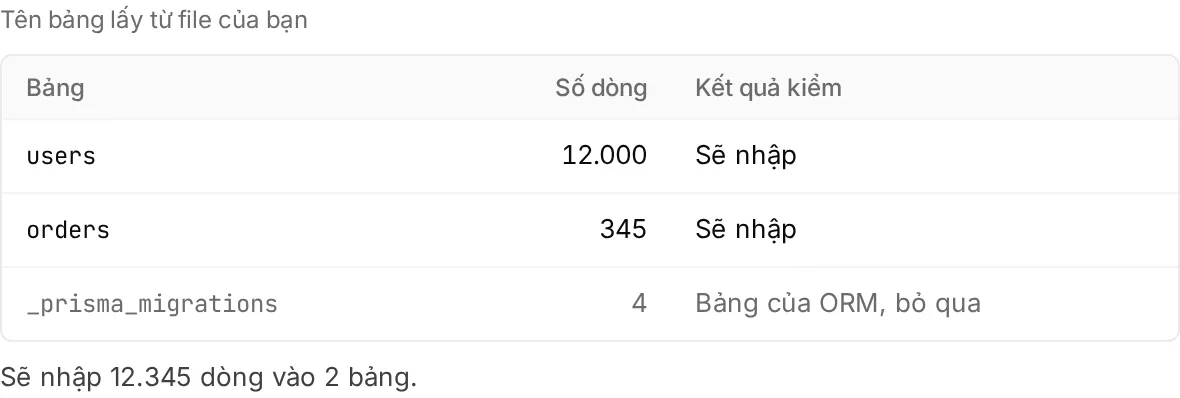
-
Staging and previews: Embra imports right away. Production needs an Owner or Admin to approve within 1 hour; after that the import is cancelled and the file must be uploaded again:
- Owner, Admin: type the environment name and click “Duyệt và nhập dữ liệu” (approve and import) right in the dialog.
- Developer: click “Mở trang duyệt” (open approval page) and send that page to an Owner or Admin.
-
Wait for “Đã nhập … dòng vào … bảng.” (imported … rows into … tables), then open the app and check a few records you know (an order number, a total), not just row counts.
The whole import runs in one transaction: if anything fails, the database is left unchanged. Deploys of the environment wait while the import runs.
| File requirement | Detail |
|---|---|
| Format | --data-only is required, plain SQL (gzip allowed). Files with CREATE or ALTER, files made with --inserts and the custom format (-Fc) are refused |
| Schema, encoding | Only tables in the public schema, UTF8 |
| Size | Also after decompression, no larger than your plan’s database storage. An uploaded file that is not used is deleted after 24 hours |
| ORM migration tables | _prisma_migrations, knex_migrations, schema_migrations, django_migrations… are skipped when Embra’s database doesn’t have them |
| Who sees “Nhập dữ liệu…” | Owners, Admins, Developers |
Fix a failed check
Section titled “Fix a failed check”| Embra says | Fix |
|---|---|
| “Database không có bảng này” (no such table), “Thiếu cột: …” (missing columns), “Database không có sequence …” (no such sequence) | Add the table or column with a migration and deploy, or leave that table’s data out with --exclude-table-data. Create a new file and upload again |
| “Bảng đã có dữ liệu” (table already has data) | If you already imported this file, the data is in. If not, leave that table’s data out with --exclude-table-data and upload again |
| The file is refused right after upload | Run pg_dump again with exactly the command above, including --data-only. If the old database is not UTF8, add --encoding=UTF8 |
Embra only imports Postgres dumps; MySQL and other databases cannot be imported yet. Any other error: email hello@embra.cloud with the import’s operation_id, your workspace, the environment and the time.
Point your domain to Embra
Section titled “Point your domain to Embra”- Lower the TTL of your domain’s records at your DNS provider to about 300 seconds, 1–2 days ahead.
- Open the production environment’s Cài đặt → Domain (settings, domain), enter the domain → “Thêm domain” (add domain).
- Add the TXT record Embra shows. It does not affect the old app.
- Once the data is imported, change the CNAME record (or A for the bare domain) to the value Embra shows.
- Click “Kiểm tra” (check). Embra needs both the TXT and the CNAME (or A) right before it verifies; HTTPS is issued on the first request.
- Keep the old app and database read-only for a few days, in case you find missing data.
An unverified domain is kept only 7 days, so don’t add it too early. Details and the Cloudflare note: Custom domains.