Staging, production and approval
What an environment is
Section titled “What an environment is”Each project has one or more environments: each is a separate running copy of the app with its own Postgres, secrets, bucket and URL. Secrets on production are not on staging, and the other way round.
| Kind | How it is created | Deploys |
|---|---|---|
production |
Created with the app when you deploy from GitHub | Always wait for an Owner or Admin to approve |
staging |
Created by hand, at most one (see below) | Go out on their own, unless a migration changes or deletes data |
Preview pr<number> |
Created per pull request, on plans with previews | Like staging. See Pull request previews |
Default URL of each environment:
https://<tên-project>-<tên-environment>-<6 ký tự cuối mã workspace>.onembra.comThat is <project-name>-<environment-name>-<last 6 characters of the workspace id>.
How staging differs from production
Section titled “How staging differs from production”| Production | Staging | |
|---|---|---|
| Approval | Every plan, even without migrations | Only when a migration changes or deletes data |
| Postgres | Its own | Its own, production data is not copied |
| Secrets, bucket, domains | Its own | Its own, set them again for staging |
| RAM, CPU | The app size in the plan’s resource pool | Half of the plan’s RAM, CPU and IOPS (at least 256 MiB RAM, 0.25 vCPU), outside the pool |
| Disk | Per plan | Same as production |
| Price | Included in the plan | The Start plan has no staging. Other plans charge a monthly add-on, see the pricing page |
Creating staging
Section titled “Creating staging”Only the Owner can create staging when it is billed, and it must be a real person who signed in recently.
-
Open the project → “Tạo mới” (create) → “Environment mới” (new environment).
-
Enter Tên environment (environment name), for example
staging(lowercase letters, digits,-). -
Under Loại environment (environment type), pick
staging→ “Xác nhận tạo environment” (confirm).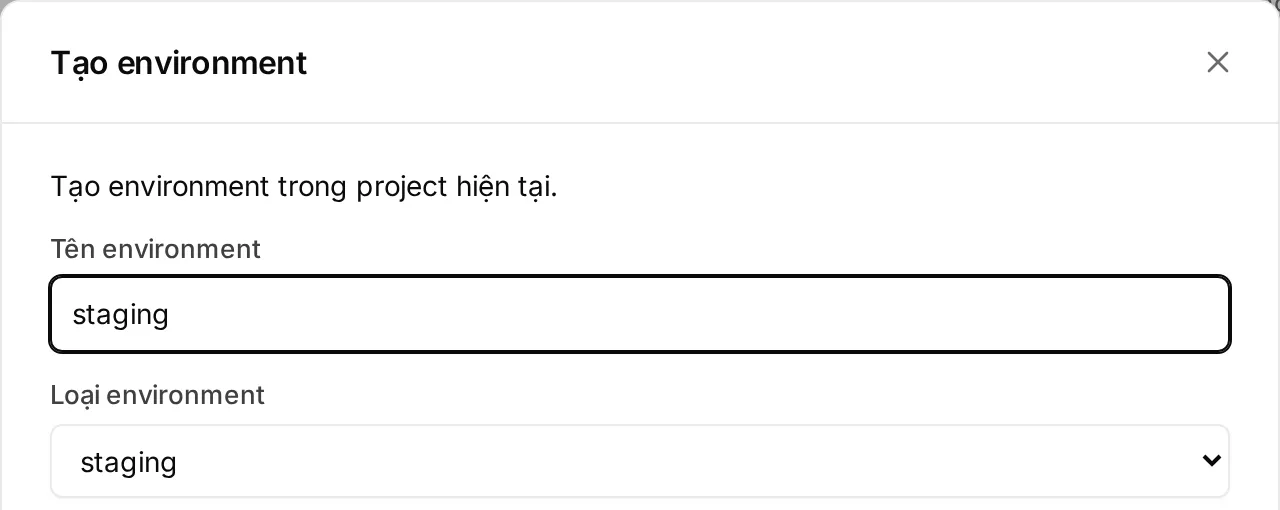
-
Open the new environment’s Cài đặt → Source code (settings, source code) and pick the Repository. Under “Advanced config”, enter a Branch (for example
develop) → “Kết nối repo” (connect repo). -
Open Cài đặt → Secrets and set the secrets for staging. See Secrets.
From then on, every push to that branch builds and deploys staging.
| If you see | Do this |
|---|---|
Gói … không có staging. … or Mỗi project có tối đa một staging. … |
Upgrade, or delete the old staging. The limit counts across the whole workspace. See QUOTA_EXCEEDED |
Workspace đang trong kỳ trả trước tới … |
Staging can’t be added in the console during a prepaid term. Email hello@embra.cloud and the Embra team adds it for you |
What a deploy plan is
Section titled “What a deploy plan is”When a build finishes, Embra makes a plan: a summary of everything that will change on deploy. The approver reviews exactly this plan.
push → build → plan → (diễn tập migration) → chờ duyệt? → deploy(push, build, plan, migration rehearsal, wait for approval?, deploy)
| Part of the plan | Contents |
|---|---|
| Code mới (image) (new code) | The old and the new image |
| Secret | Added, removed or re-versioned. Values are never shown |
| Environment variables | Added, removed or changed. See Environment variables |
| Migration | Files waiting to run, the rehearsal result on a copy of the data, schema changes and Dữ liệu có thể mất (data that may be lost) |
A plan with migrations is first rehearsed on a copy of the data. If the rehearsal fails, the plan stops with MIGRATION_REHEARSAL_FAILED and the real database is untouched.
When a deploy waits for approval
Section titled “When a deploy waits for approval”| Case | Production | Staging, preview |
|---|---|---|
| No migrations | Waits | Goes out |
| Safe migrations, long table locks, or statements outside a transaction | Waits | Goes out |
| Migration changes or deletes data | Waits | Waits |
| Rehearsal estimates rows will be lost | Waits, and you also type CONFIRM_MIGRATION |
Waits, and you also type CONFIRM_MIGRATION |
| Unsupported migration | Refused, see MIGRATION_UNSUPPORTED |
Refused |
- Which migration falls in which group: see How Embra checks migrations.
- A plan waiting for approval has the code
APPROVAL_REQUIRED, orMIGRATION_DATA_LOSSwhen the rehearsal shows data will be lost.
Who can approve
Section titled “Who can approve”- Only Owners and Admins. Developers, Viewers and AI agents can’t approve, but Developers and agents can still create plans.
- Needs a real person: a web session signed in within the last 12 hours. After 12 hours, sign in again (
REAUTH_REQUIRED). - Machine tokens (CI, agent) can never approve (
HUMAN_REQUIRED).
Details: Members and permissions.
Approving in the console
Section titled “Approving in the console”- Open the environment’s Tổng quan (overview). The plan bar shows “… thay đổi chờ áp dụng” (changes waiting), or the “Chờ bạn duyệt” (waiting for your approval) section → click “Xem và duyệt” (review and approve).
- Read Tác động (impact: code, secrets, environment variables) and Migration (rehearsal result, Thay đổi schema (schema changes), Dữ liệu có thể mất (data that may be lost)).
- Check Hạn duyệt (approval deadline) under Quyết định của bạn (your decision).
- Production only: type the environment name in the “Gõ … để chắc là bạn đang duyệt đúng chỗ” box (type the name to confirm you are in the right place).
- Data-loss warning: type
CONFIRM_MIGRATIONin the “Gõ CONFIRM_MIGRATION để xác nhận rủi ro dữ liệu” box. - Click “Duyệt và deploy” (approve and deploy), or “Từ chối” (reject).
A Developer who opens this page can still read the plan, but the approval area only shows “Chỉ owner hoặc admin thực hiện được” (only an owner or admin can do this). Send the page link to an Owner or Admin.
After approving, rejecting or expiry
Section titled “After approving, rejecting or expiry”| Outcome | What happens |
|---|---|
| Approved | The deploy is queued: migrations (if any), then the new version runs next to the old one until it passes the health check. See Health check |
| Rejected | The plan is cancelled and nothing is applied. The running app keeps running. Fix the code and push again for a new plan |
| Expired | The plan is cancelled (APPROVAL_EXPIRED). Click “Build lại” (rebuild) for a new plan |
| A newer build | Older plans created by a build are cancelled, so you never approve a stale version by mistake. Approve the new plan |
| The environment changed while waiting | The plan is cancelled (GENERATION_CONFLICT), for example after a rollback |
| Plan | Approval deadline |
|---|---|
| Production plan | Expires 24 hours after it was made |
| Plan with migrations (staging included) | Depends on the rehearsal result, valid for 24 hours. After that it can’t be approved; rebuild to rehearse again |
Rolling back code needs no approval. See Rollback.